In partnership with |  |
| | Welcome back to Art Piece 👋
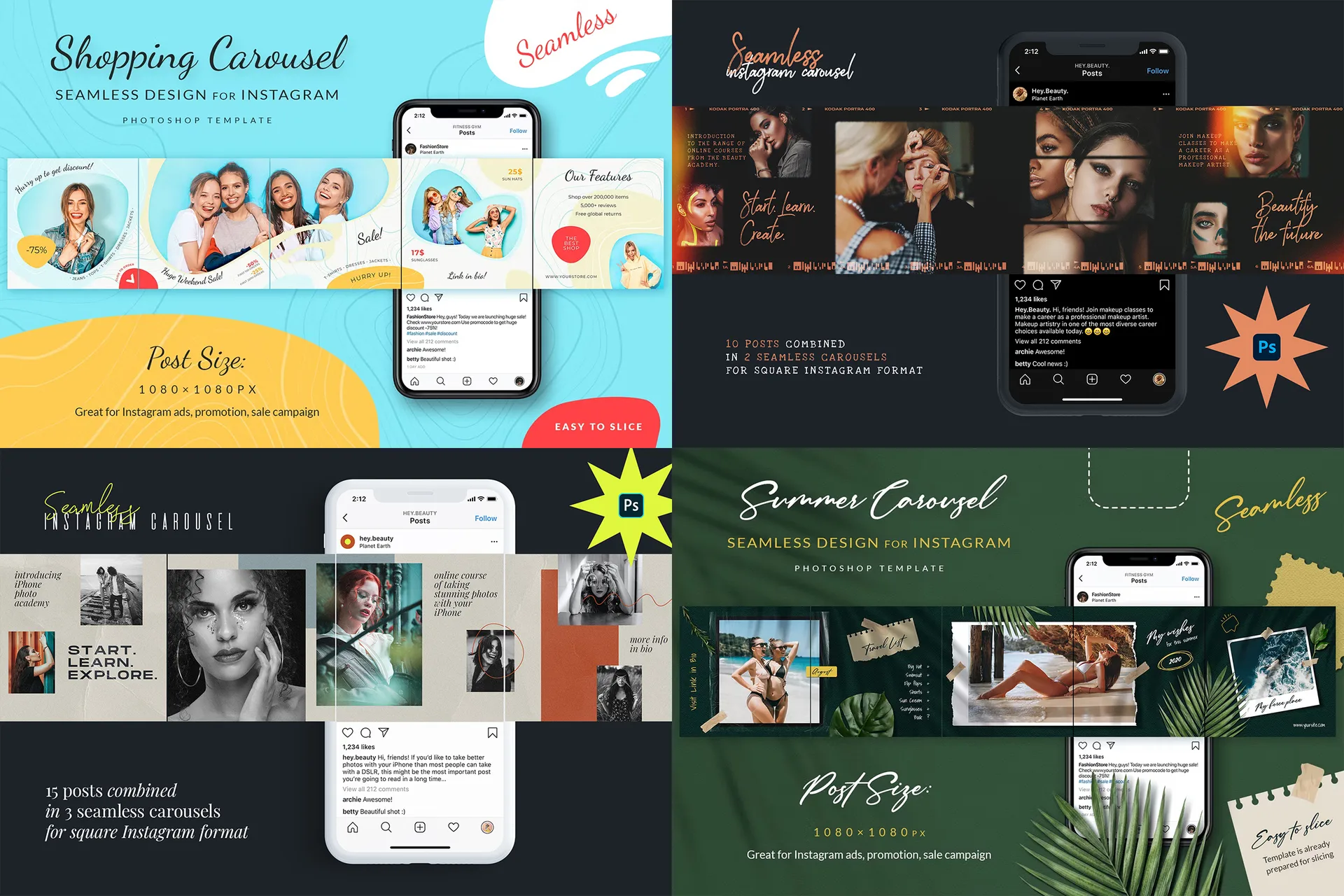
Another week, another tip, and another free tool you can use to improve and inspire your digital creations. | Let’s dive in 🙌 | | | | | Today’s Tip: | Creating meaningful backdrops for your Instagram account(s) | Creations are brought to you by Andrew Skoch | With years of experience in Adobe Photoshop and a knack for PSD’s, Andrew shows you how easy it is to create impressive backgrounds in all your IG accounts. That’s right, I know most of you have at least 2 😄 | The below bundle is brought to you by Andrew and we’ll dive into #7 (Step by Step IG Carousel 1)to get get you set up: | Get your desired font: Pick a font you’d like to use to align with your brand / theme. The font we used was here.
Edit Templates: Go to the “Layers” panel and edit text via “Texts” tool.
Add Photos: Double click on smart object icon, place your photo in the opened window, save it and close the second window.
Save all 5 photos: Use the “File” → “Export” → “Save for Web” function.
| For those experts wanting to dive right in, check out the free sample below👇 |
| |
| | |
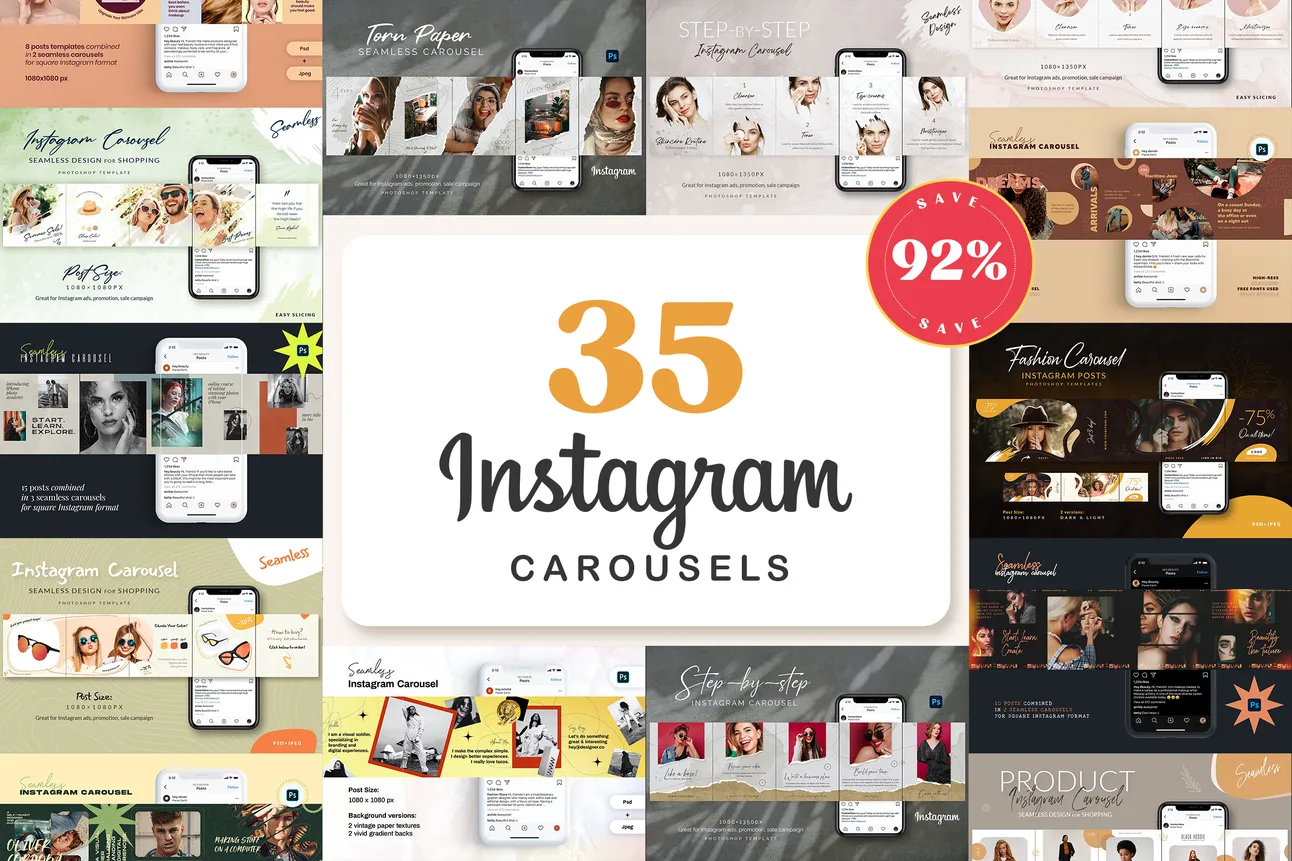
| | | | | Today’s Free Tool: | | | More social than social media, more PSDs than you’ll ever need, check out this bundle of 35 IG PSDs… | Here’s what you get: | 35 IG sets 53 PSD templates in all High-quality output Commercial license
| This bundle is our most complete IG bundle yet... enjoy!! | |
| |
| | |
| | | | | That’s all for this week! | Tune in again next Monday for another set of free tips and tools. |
| |
| | |
| What is your current state of Photoshop? | | Help us make better ads | | Did you recently see an ad for beehiiv in a newsletter? We’re running a short brand lift survey to understand what’s actually breaking through (and what’s not). | It takes about 20 seconds, the questions are super easy, and your feedback directly helps us improve how we show up in the newsletters you read and love. | If you’ve got a few moments, we’d really appreciate your insight. | Take the survey. |
|